There are many ways you can package your new application. Depending on what plaform/OS you use, there are many many options. On windows, you have InstallShield, Visual Studio Installer Project (MSIX), WiX, and InnoSetup. Some cost money or require a subscription, others are free like Chocolatey and InnoSetup.
InnoSetup is used in this page to show you how you can configure and build a setup exe. A setup.exe is a self-extracting archive executable or binary that can run asking the user different parameters that are required to install a program to windows.
Note: This setup requires the PC or VM to have python 3 and pip installed before a user tries running it from start menu. If this is not done, the running of the program after installation will fail. To install these first, see my beginner tutorial on installing and testing python.
The things innosetup uses can be anything from where the files will reside on a computer, to who has access after installing to what websites, help files and support links you can give them. It also logs the setup errors to a file, helps the user by storing the un-install and registry information to later on change or uninstall it.
Get started
I have seen close to no online sources on how to prepare, package and organize a python TclTkInter app to get it ready for release in a setup.exe.
Prepare your files
Download all files from your git repo or use explorer to go to the program’s directory on your computer. You should see something like:
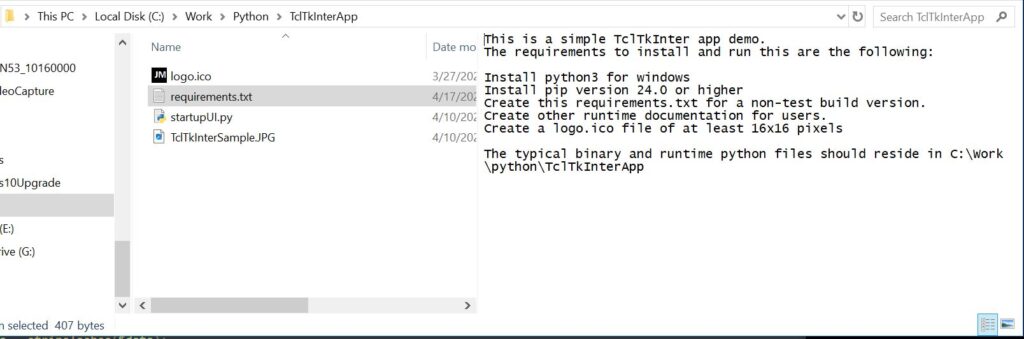
Rename the files so they match above. Next, copy the startupUI.py to startupUI.pyw.
Open text editor and create a bat file with the following:
start pythonw "C:\Program Files(x86)\TclTkInterApp\startupUI.pyw"Save it to C:\Work\python\TclTkInterApp\TclTkInterApp.bat
Now on with creating the setup exe.
So, to begin, download the innosetup program read the innosetup basic starting documentation, and start it up.
Follow this build tutorial and create a .exe file.
Open cmd.exe and type: pip install pyinstaller
close cmd.exe and edit the system path. Insert the path to the pyinstaller.exe to this path, save it and reopen cmd.exe
Use pyinstaller -F startupUI.py –noconsole to get rid of the console command window.
Rename it TclTkInterApp.exe and place it in the C:\Work\Python\TclTkInterApp folder.
Use this file when the installer asks you for executable location.
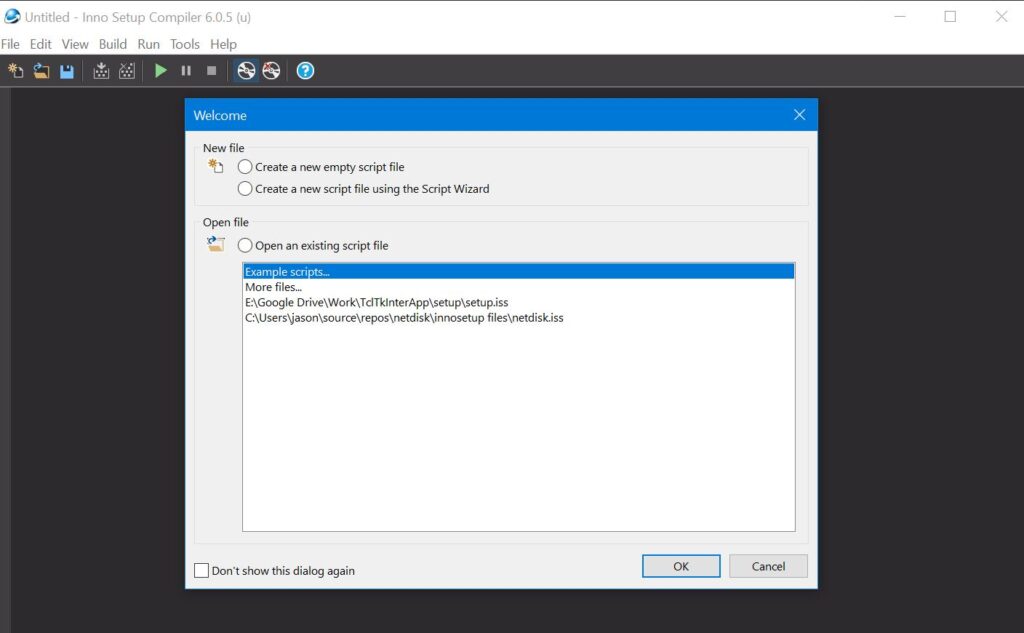
Select Create a new empty script and hit Ok
Click File -> New and it will start the Inno Setup Script wizard
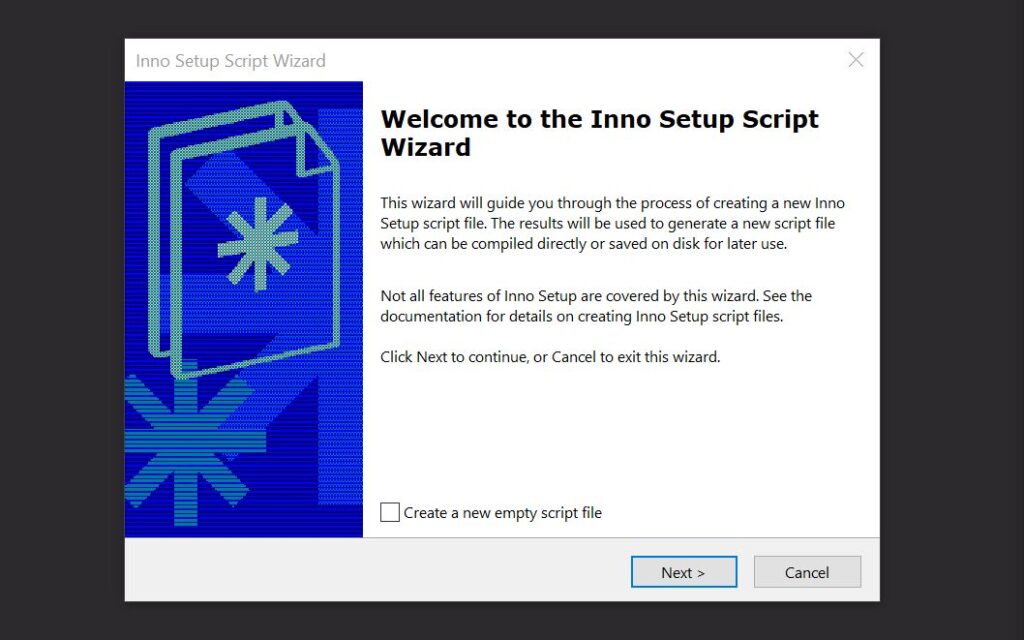
Click Next
In the next screen, specify the location to your TclTkInterApp.exe file or .bat file as the application binary and leave all other settings alone for now:
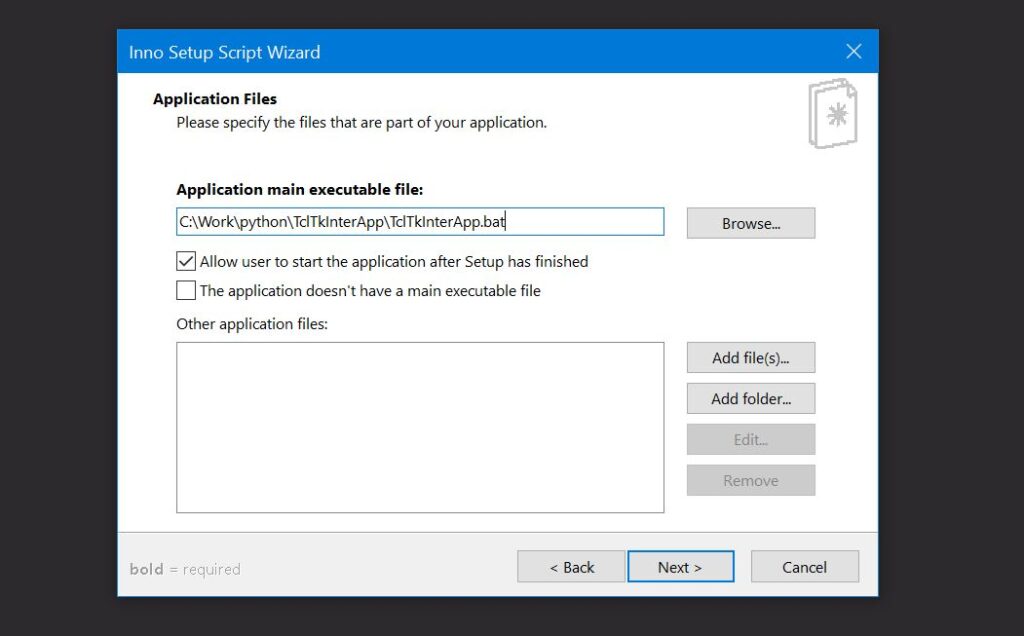
Click Next. This opens the Application Shorcuts settings:
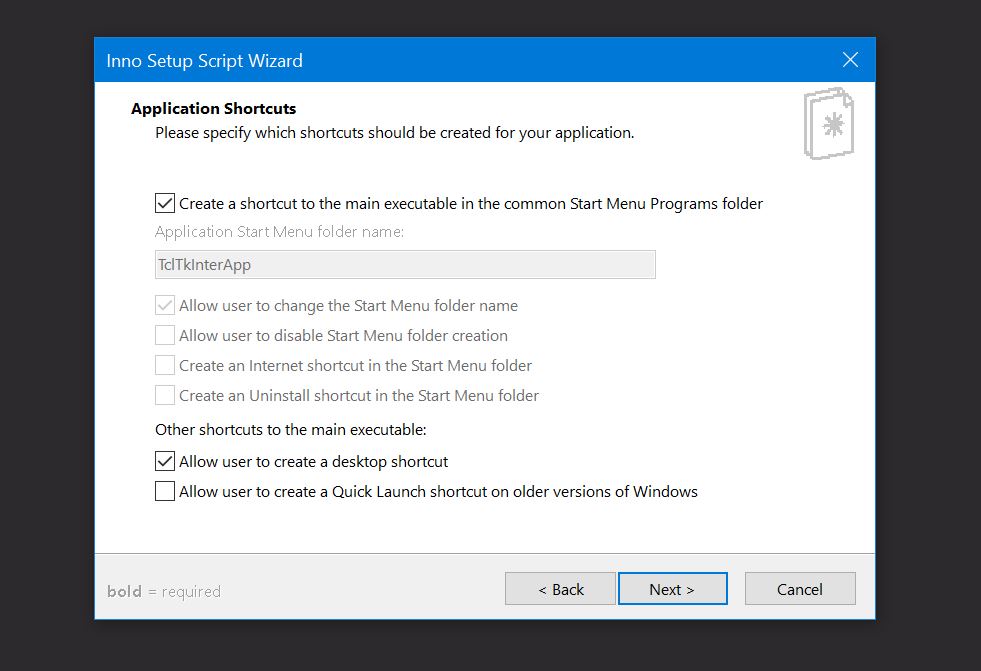
Leave everything default, and click Next
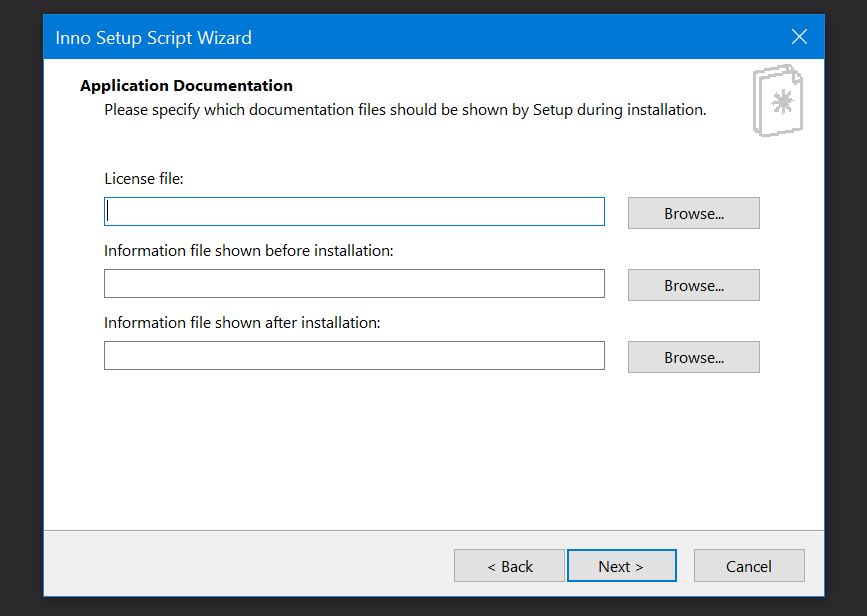
This opens the Application Documentation screen. If you have a default license file, information file for before and after, enter them here. In this case, just leave it all blank and hit next
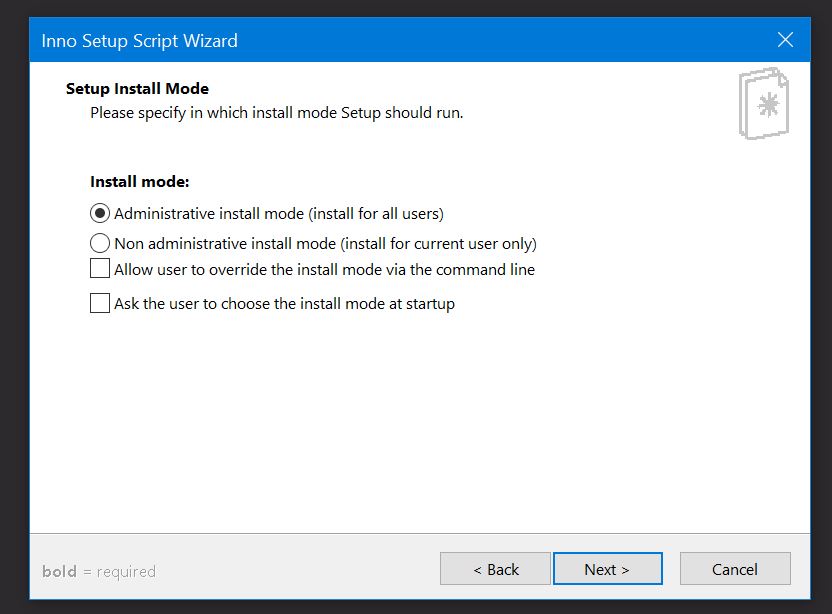
Select or leave this set to Administrative install mode and click Next
For our sample, I’ve checked/left it on English.
In the Setup Languages, select your language checkbox and hit Next
This opens the Compiler Settings:
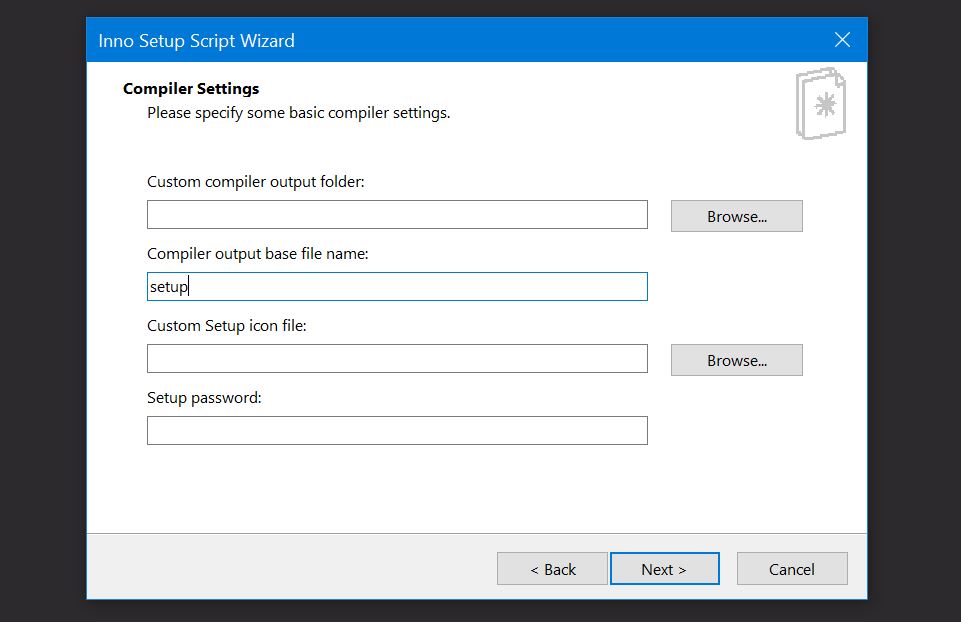
For compiler settings, change Compiler output base filename from “mysetup” to “setup”. leave everything else the defaults and click Next
This goes to the InnoSetup Preprocessor screen. Leave “Yes, use #define compiler directive” checked and click Next
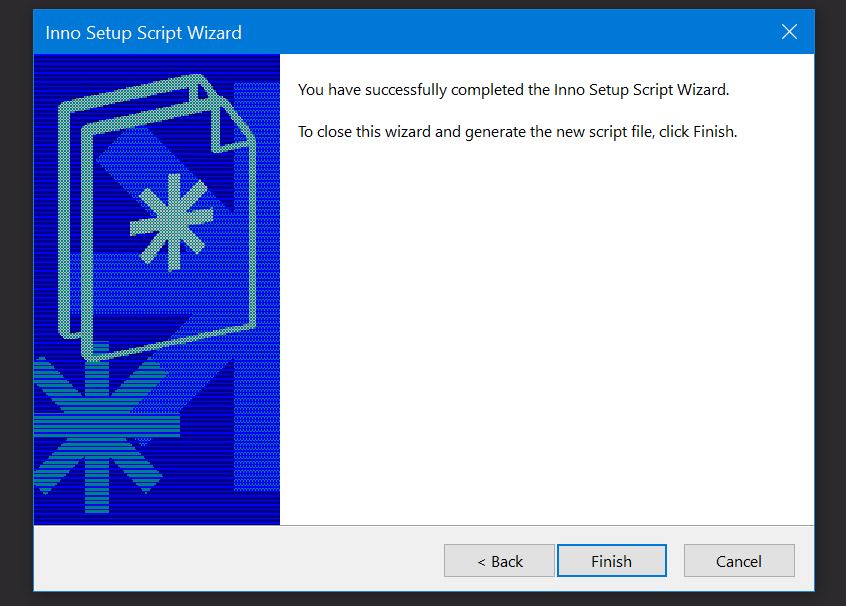
Click Finish. Now, the innosetup creates the installer script and binary after prompting you:
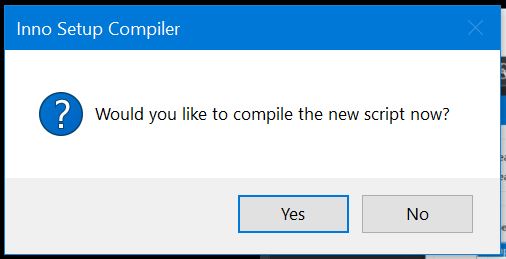
Click Yes and at the next prompt, save the script to “Setup” filename and hit “Save”
Now you should be done. Check the C:\Work\python\TclTkInterApp folder for the new setup.exe and output folder for an error log, if the build did not complete, you’d see errors in that file. The interactive compiler also shows you the status of the build on the bottom of the innosetup screen.
Next, if there is a setup.exe in Output folder, run it. Leave everything defaults and finish the setup of TclTkInterApp. Check your start menu. You should see TclTkInterApp/TclTkInterApp.bat program and group menu, folder and the application will look like a .bat file. You can manually change the icon, or next time, find the option in innosetup to include a custom setup.exe and application icon and use that for the icon file. I will show you more like that in newer coming content.
The renaming of startupUI.py to extension pyw makes this file startable by pythonw.exe, which helps you hide shell output and the cmd.exe window when you start TclTkInterApp by the new windows start menu icon.
Work-in-progress. More to come…
Last update: 4/17/2024